
Purpose
Adal CLI is the client for delivering Inbound requests to an application on your computer. Keep it running to receive deliveries for your CLI Channel.
Delivery flow
An external sender calls your Server URL. A Router connects the Server to a CLI Channel, whose Endpoints identify your local recipients. Adal CLI must be running for local delivery.
Before you start
Have the CLI executable on your computer and open a terminal in its directory. The commands below use the filename cli (cli.exe on Windows); use your executable's filename if it differs. Prepare a local application to receive the requests.
Prepare the Channel and token
Create a CLI Channel and add an Endpoint for your local application.
Check Enabled and Deliver backlog, then choose Save endpoints.
Connect the Channel to a Server through an enabled Router.
When ready to connect the client, issue a secret with the intended lifetime from the Channel's CLI token panel. Keep it private; an account API token cannot replace it.
The secret is shown when issued and cannot be retrieved afterward. Replacing or revoking a token ends its access.
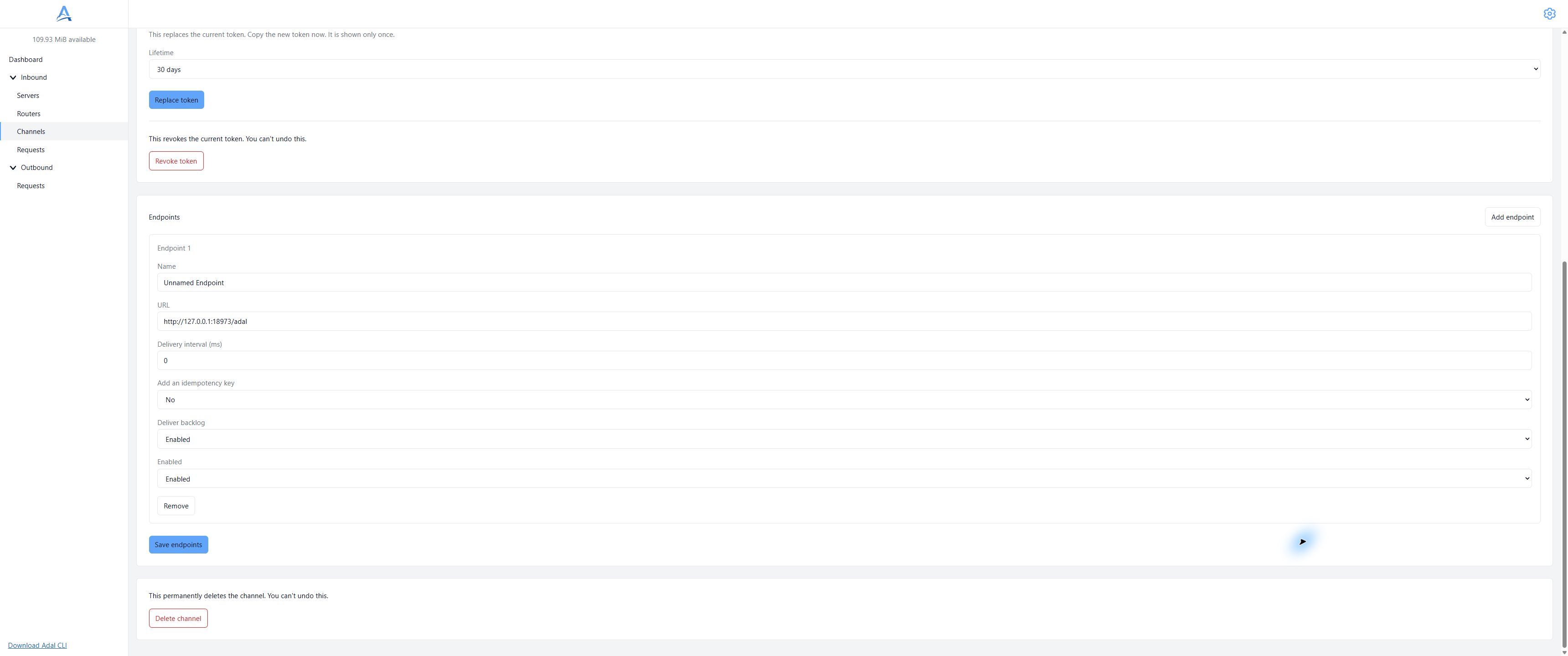
CLI Endpoint in a demonstration dashboard. Use your application's address and save the settings. English interface. Open full-size screenshot.
Verify delivery
Start the client with your Channel's CLI token:
./cli --token '<CLI_TOKEN>'
On Windows, in PowerShell:
.\cli.exe --token '<CLI_TOKEN>'
Replace <CLI_TOKEN> with the secret issued for this Channel. The default connection is wss://cli.adal.cloud. Leave the client running, then send a demonstration request to your Server URL. Check receipt in your application and the Endpoint attempt under Inbound → Requests → Deliveries. A response from the Server confirms intake, not delivery to your application.
Public connection
The client connects to wss://cli.adal.cloud by default. Public API calls use https://api.adal.cloud.
| Option | Purpose |
|---|---|
--token |
Required CLI Channel secret |
--host |
Connection address; use wss://cli.adal.cloud for the public service |
--help |
Show help without connecting |
To select the public address explicitly:
./cli --host wss://cli.adal.cloud --token '<CLI_TOKEN>'
ADAL_API_HOST can set the connection address. --host takes precedence over that variable; if neither is set, the public default is used. A hostname without a scheme uses WSS. Use the address alone, without a path, credentials, query or fragment.
Shutdown and saved work
Press Ctrl+C to stop the client. Restart it with the same connection and token to resume saved work. Preserve its saved data when restarting; it can contain request content. Restrict access and keep tokens and private request data out of screenshots and logs. A delivery can be repeated after an interruption, so your recipient should handle duplicate events safely.
Troubleshooting
Check that the Channel is connected through an enabled Router, its Endpoint is enabled and your application is reachable from your computer. Check the CLI token's expiry and whether it has been revoked. Inspect the request's delivery history before sending the same event again.
Deliver backlog controls delivery of requests received while the client was absent. Turning it off does not cancel work already accepted by the client.